Apple Mail Settings
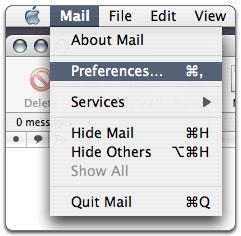
1- To add an email account in Apple Mail, open the Mail menu and click Preferences.
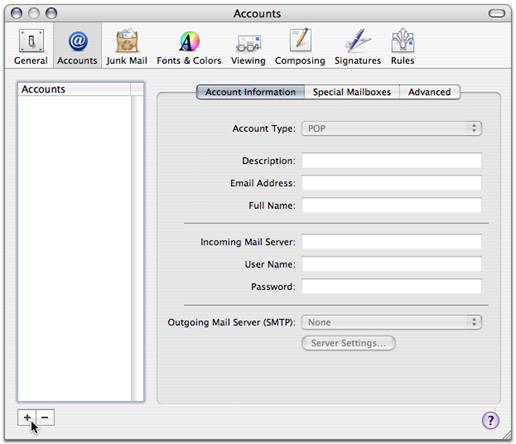
2- Click Accounts, then click the plus (+) sign at the bottom left to add a new account.
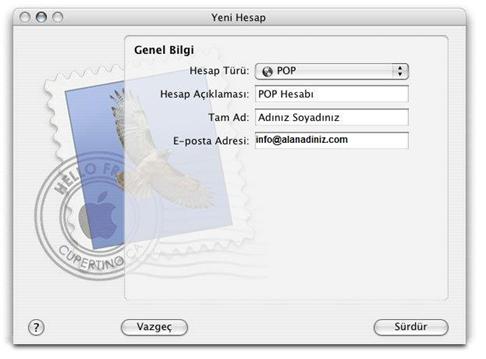
3- As the Account Type, choose POP. Under Account Description, enter any description of your email account; under Full Name, the name you want to appear on emails you send; and finally your full email address.
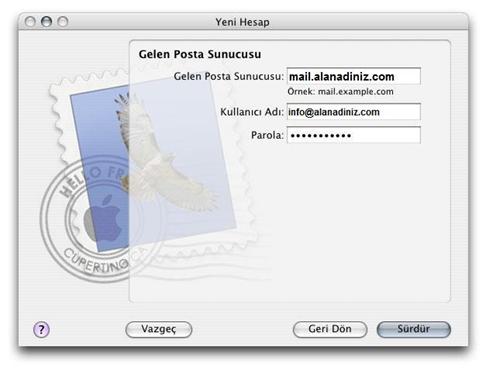
4- In the Incoming Mail Server step, enter mail.yourdomain.com as the server address, and in the user name field enter your full email address.
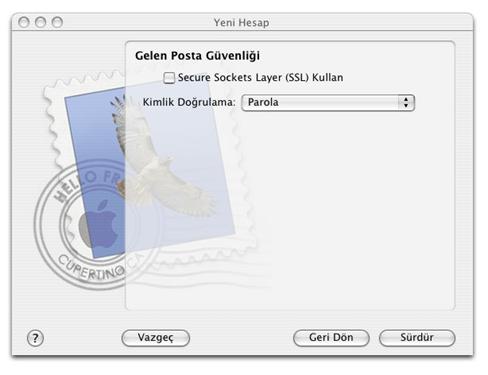
5- In the Incoming Mail Security step, choose Password under Authentication and leave the Use SSL (Secure Sockets Layer) option unticked.
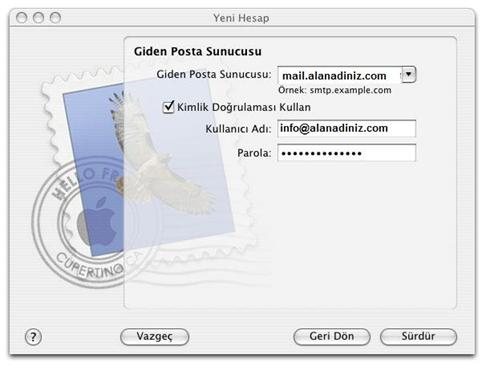
6- In the Outgoing Mail Security step, enter mail.yourdomain.com as the server address.
Tick the Use Authentication option.
In the User Name field, enter your full email address.
Tick the Use Authentication option.
In the User Name field, enter your full email address.
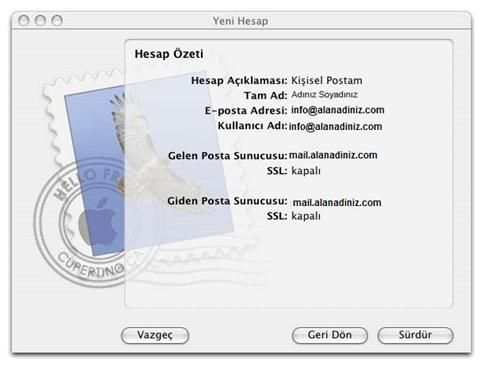
7- When you have finished, the Account Summary will appear. Check once more that all the steps you just completed are correct and click the Continue button.