This guide shows, step by step with pictures, how to add your domain email account (e.g. name@yourdomain.com) to Microsoft Outlook. The addresses and server names in the pictures are examples; enter your own details.
Have these ready before you start
- Your email address and password
- The server details below (replace yourdomain.com with your own domain)
Server details
| Setting | Value |
|---|---|
| Incoming server (IMAP) | mail.yourdomain.com, port 993, SSL/TLS |
| Outgoing server (SMTP) | mail.yourdomain.com, port 465, SSL/TLS |
| Username | Your full email address |
| Password | Your email password |
Outlook 2010 – 2021 and Microsoft 365 (classic Outlook)
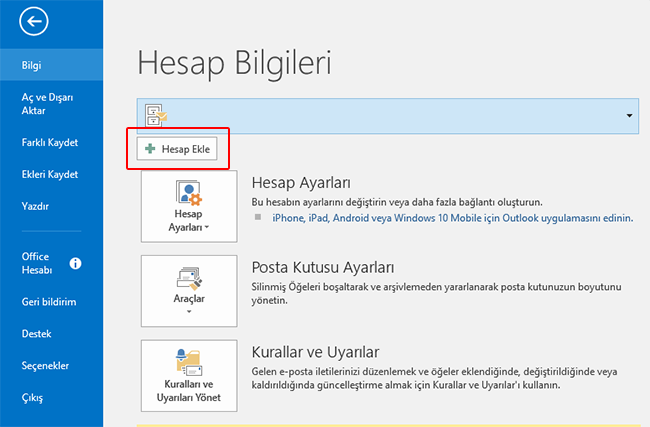
- On the File tab, click Add Account.
- Select Manual setup or additional server types and click Next.
In Outlook 2016 and later this option appears as Advanced options > Let me set up my account manually.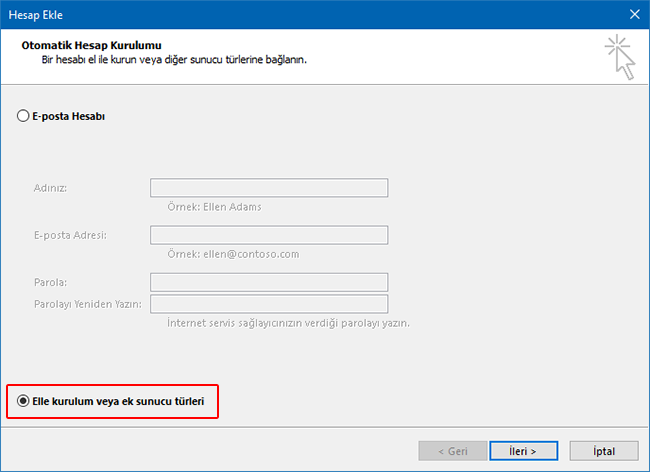
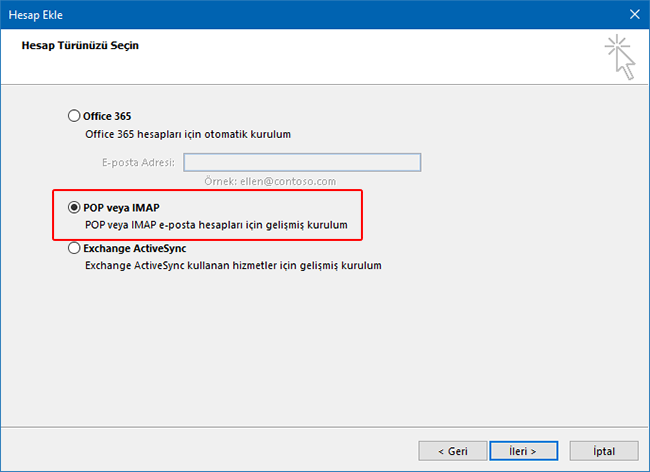
- Select POP or IMAP and click Next.
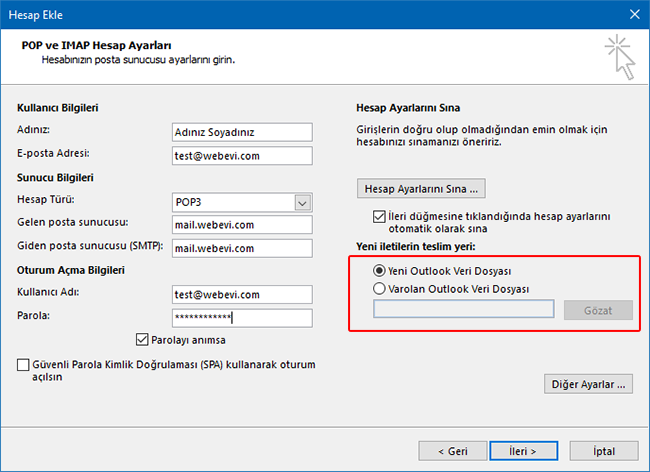
- Fill in the form: your name, email address, account type IMAP (recommended) or POP3, incoming and outgoing server
mail.yourdomain.com, your full email address as the username, and your password.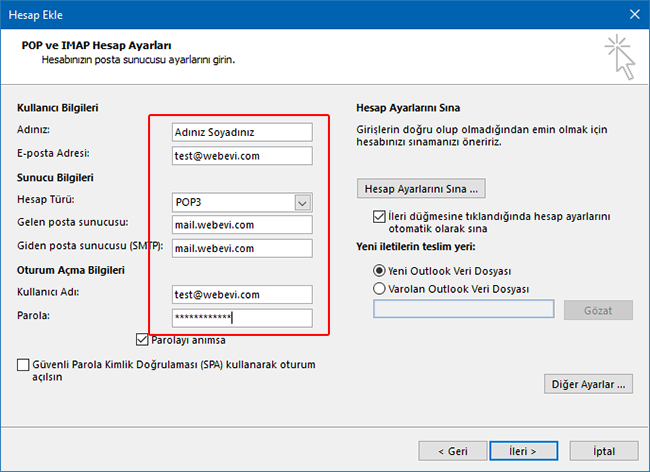
- If you chose POP3, choose whether email is delivered to a new or an existing Outlook data file.
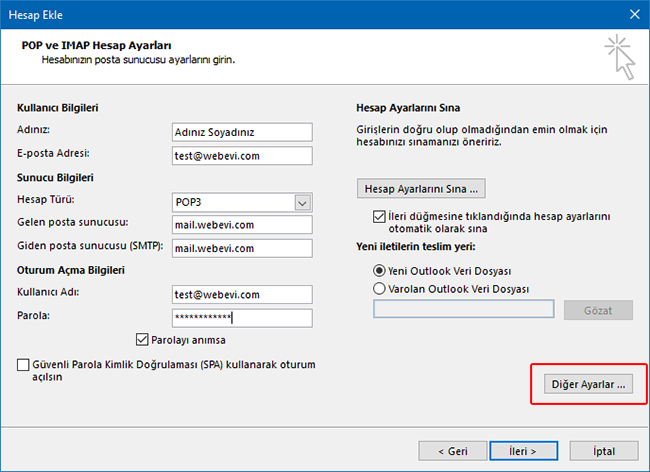
- Click More Settings.
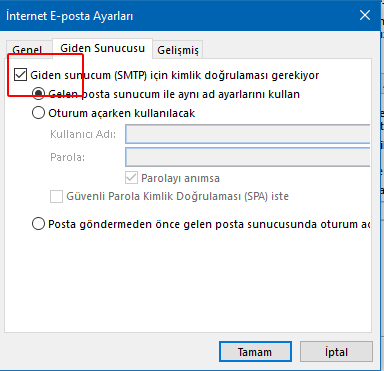
- On the Outgoing Server tab, tick My outgoing server (SMTP) requires authentication.
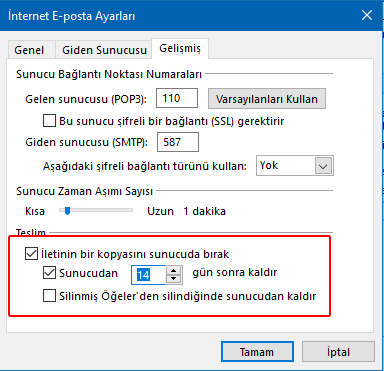
- On the Advanced tab, enter the ports and encryption: incoming 993 for IMAP or 995 for POP3; outgoing (SMTP) 465. Encryption type SSL/TLS.
The 110 / 587 values in the picture are an older example; use the secure values above. If 465 does not work, try 587 with STARTTLS for outgoing mail.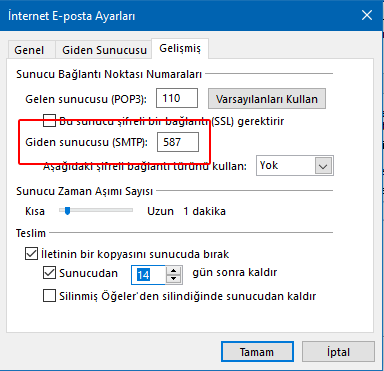
- If you use POP3, choose on the same screen how long email is kept on the server.
Note: If you leave email on the server forever, your mailbox can fill up and incoming email will bounce.
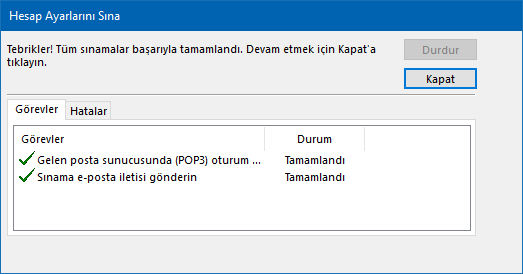
- Click OK, then Next. Outlook tests the settings; when both tasks show Completed, setup is done.
New Outlook (Windows 11)
- Go to Settings > Accounts > Email accounts > Add account.
- Enter your email address and click Continue; choose IMAP as the provider.
- Click Show more, enter the server details above and click Continue.

Troubleshooting
- I can receive but not send
- The authentication box in step 7 must be ticked: SMTP Authentication. If 465 does not work, try 587 with STARTTLS.
- Outlook keeps asking for the password
- Make sure the username is your full email address; check the password by logging in to Webmail.
- Certificate warning
- Check that the server name is
mail.yourdomain.com; if the warning continues, open a support ticket.
Need help? Open a support ticket from your client area or call +90 216 348 35 03.